5.2 Config QtCreator
- Config Build&Run Environment:
Open QtCreator, choose tools->options, then the Build & Run dialog popups.
Please choose theCompilers` tab to set compiler for QtCreator as shown below:
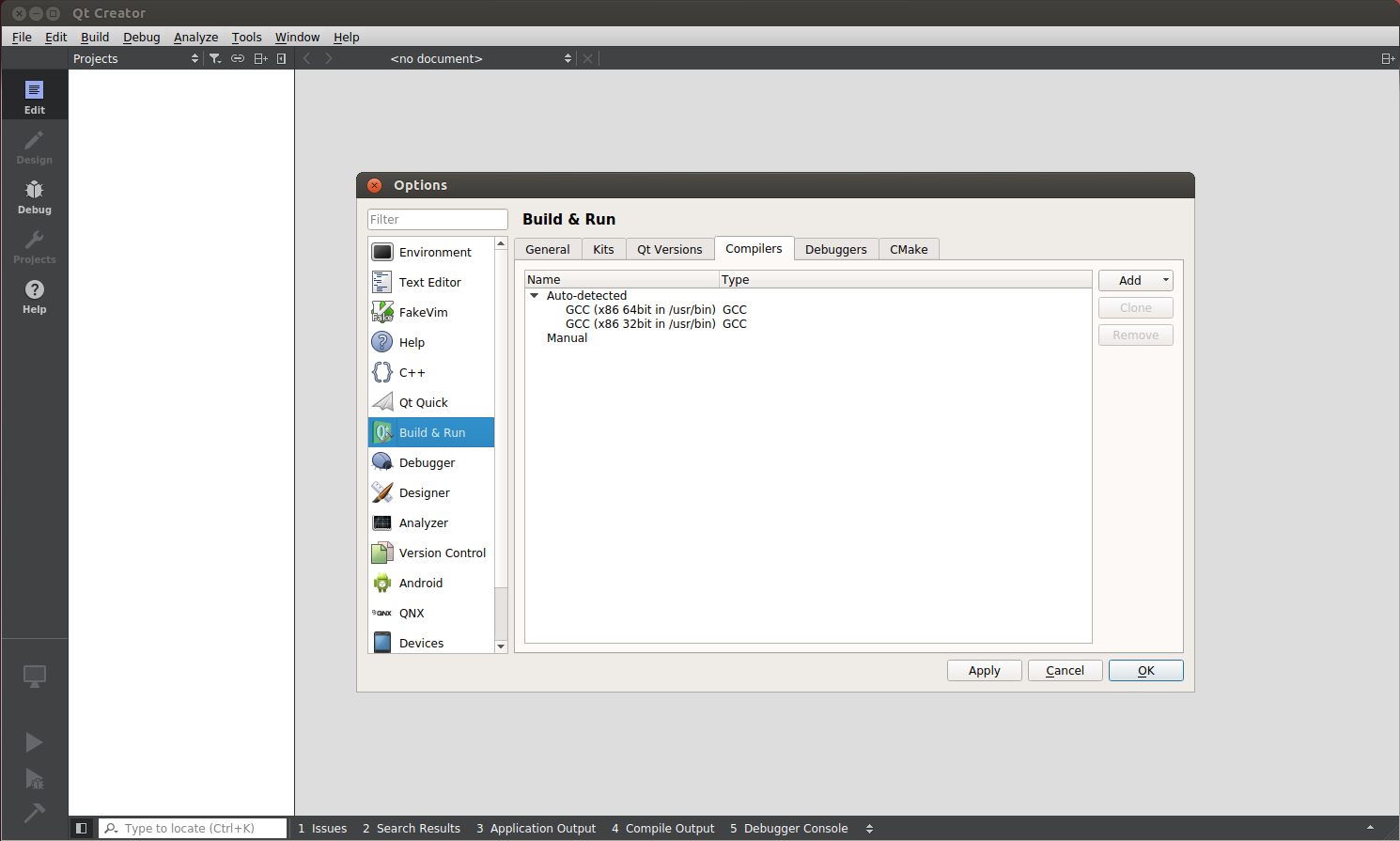
Figure 5-2-1 Settings of Compiler
Press Add button at the right side of this dialog, choose Custom in the dropdown list, and then set Name, Compiler path, Make path 和 ABI as shown below.
After complete, press the Apply button to save.

Figure 5-2-2 Add Compiler for QtCreator
At the same dialog, choose Qt Version Tab to add qmake, at the right side of this dialog, press Add button, then a new dialog popups,
please choose the qmake tools described at Chapter 3-4-1. After complete, press Open to set qmake, and then Apply to save.

Figure 5-2-3 Choose qmake
In the Build&Run window, continue to choose Kits tab, and at the right side of this dialog, press Add button, then add settings of running environment for QT5 application. In the Sysroot editbox, write the path of cross compile toolchain, in the Compiler and Qt Version editboxs, write the settings being set before, set Debugger to None, set CMake Tools to default as shown below:
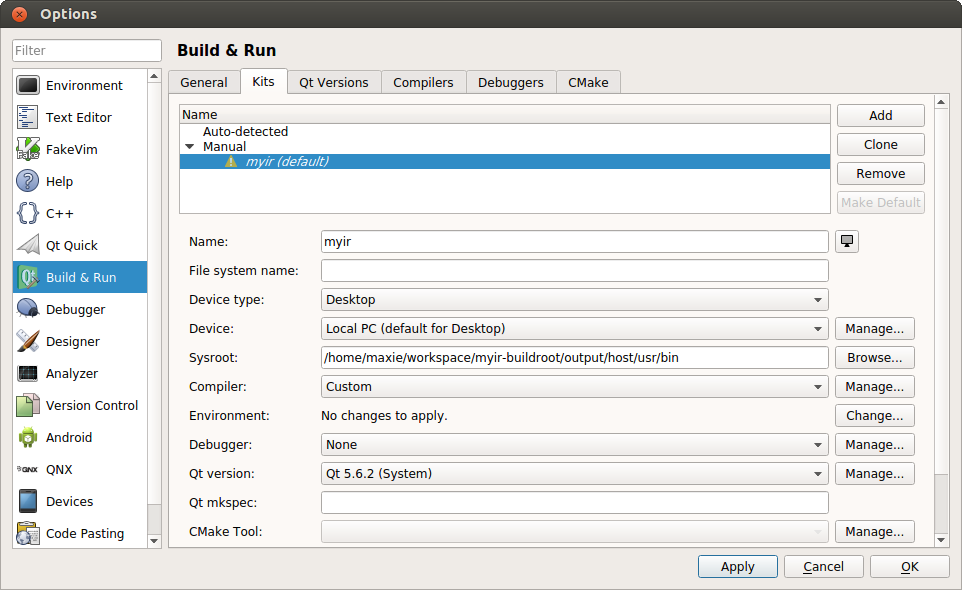
Figure 5-2-4 Add Kits for QtCreator
- Create Helloworld Project:
In the main menu of QtCreate, choose File->New File or Project, and in the popup dialog, choose Application->Qt Widgets Application as shown below:
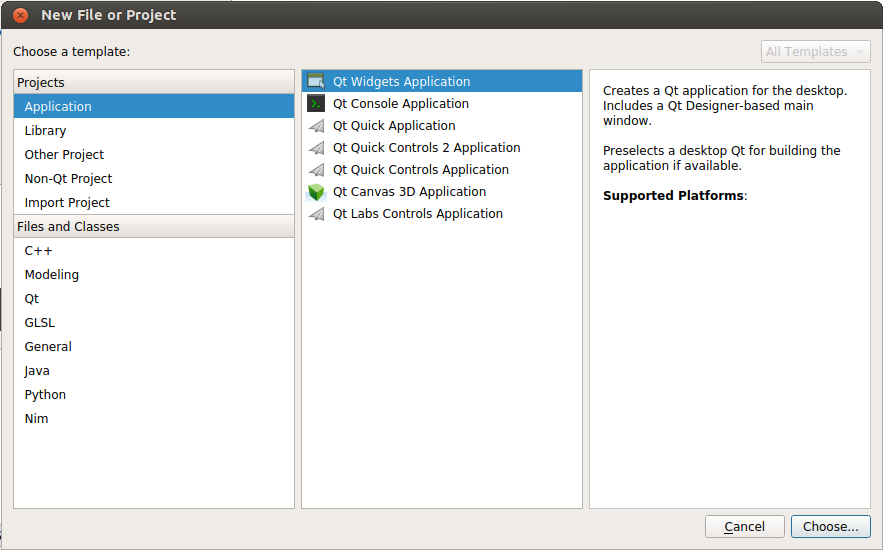
Figure 5-2-5 Create a QT Widgets Application
After pressing Choose... button, the Qt Widgets Application settings dialog popups, please set the name and path of the project as shown below in Name and Create in editboxs as shown below:
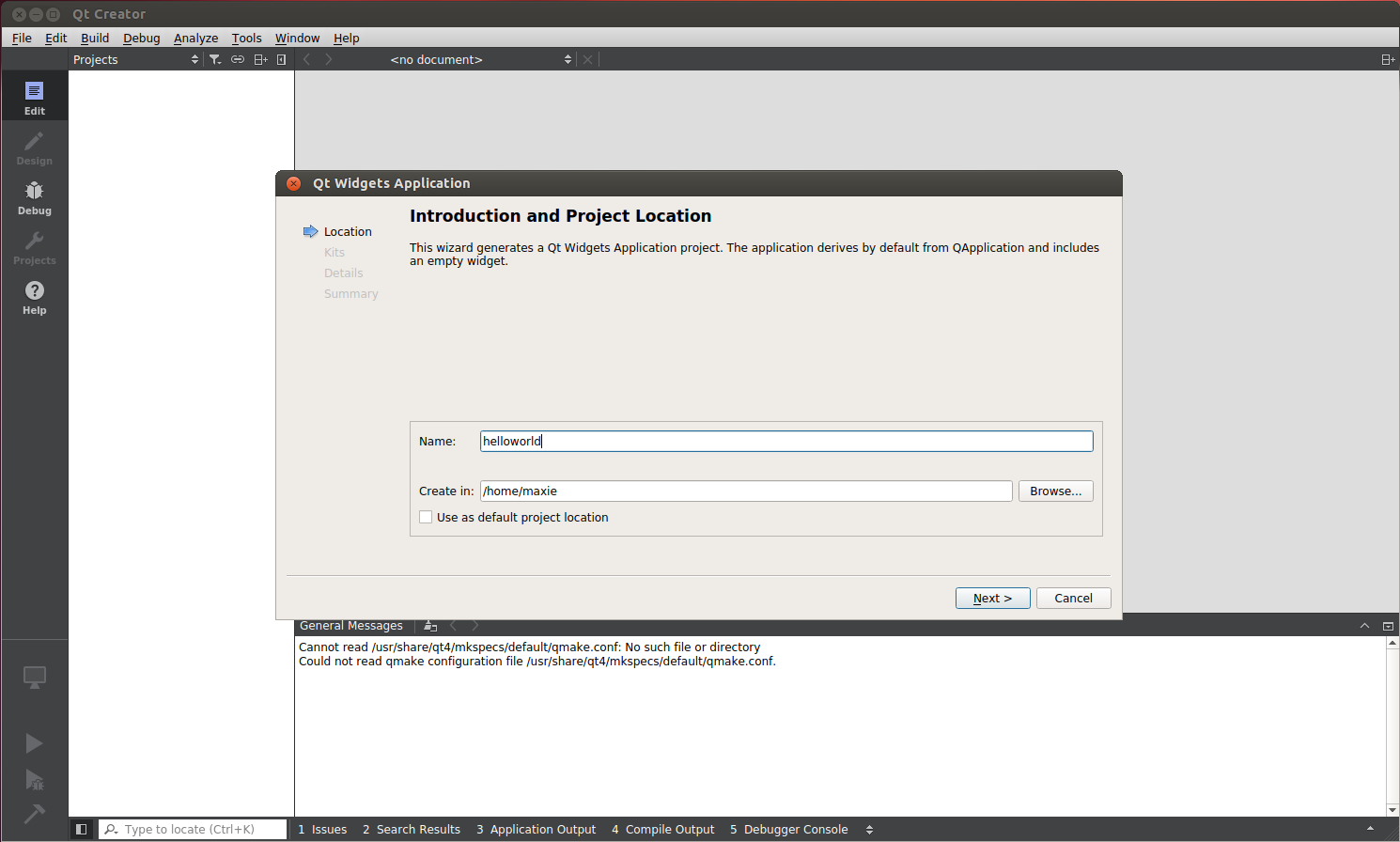
Figure 5-2-6 Set the Name and Path of the Project
Press Next button and choose the setting for Kits as below:
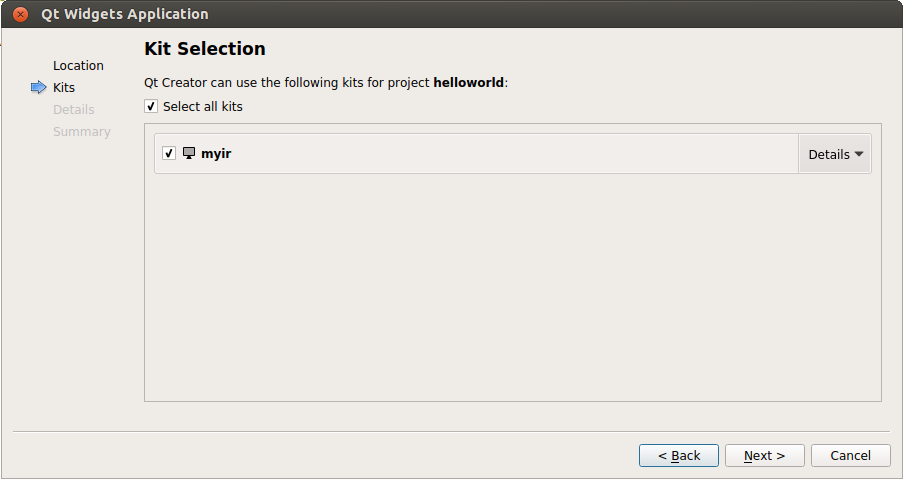 Figure 5-2-7 Set Kits for the Project
Choose the base class of the project as shown below:
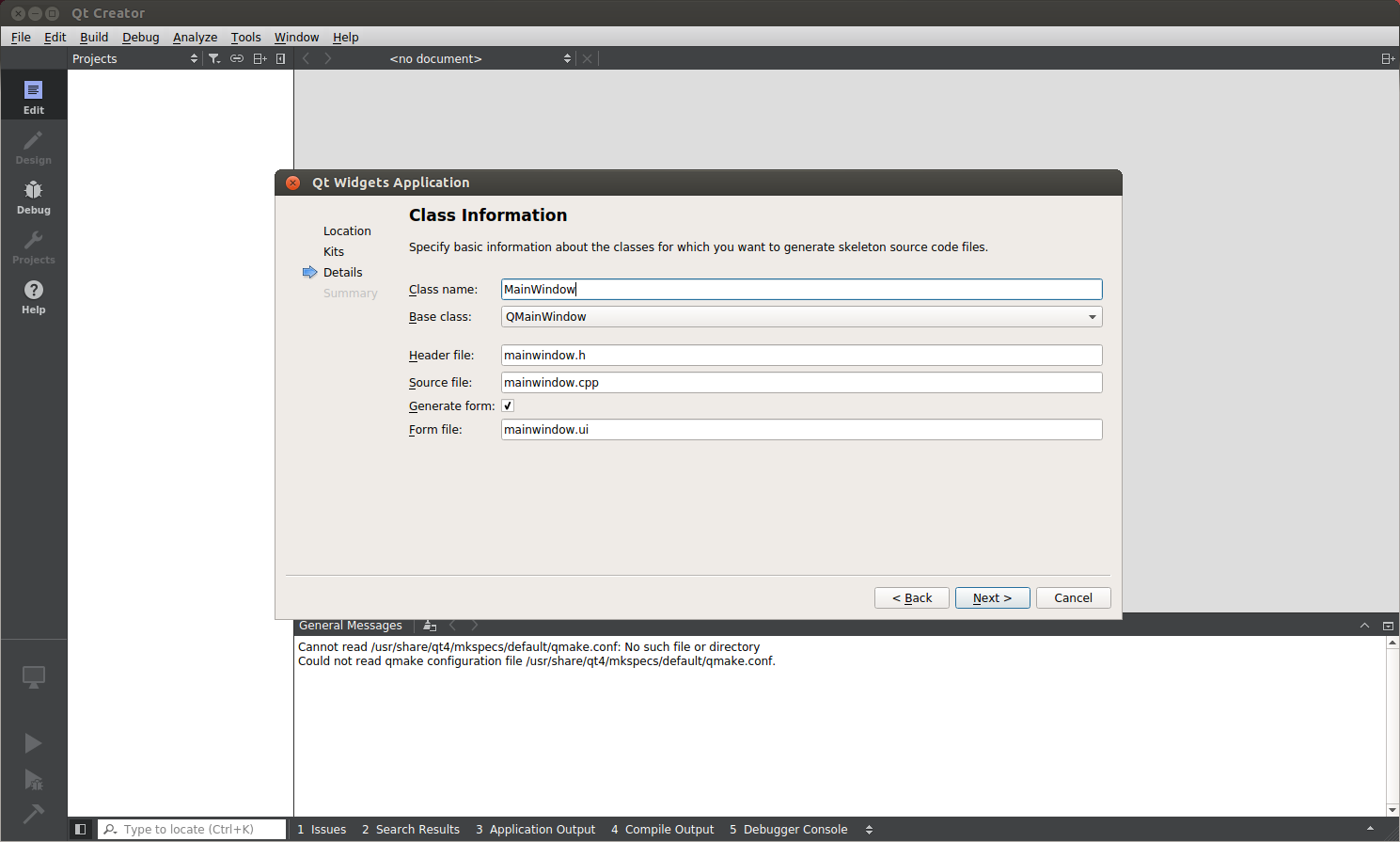
Figure 5-2-8 Choose Base Class
Press Finish button to create and save the project.
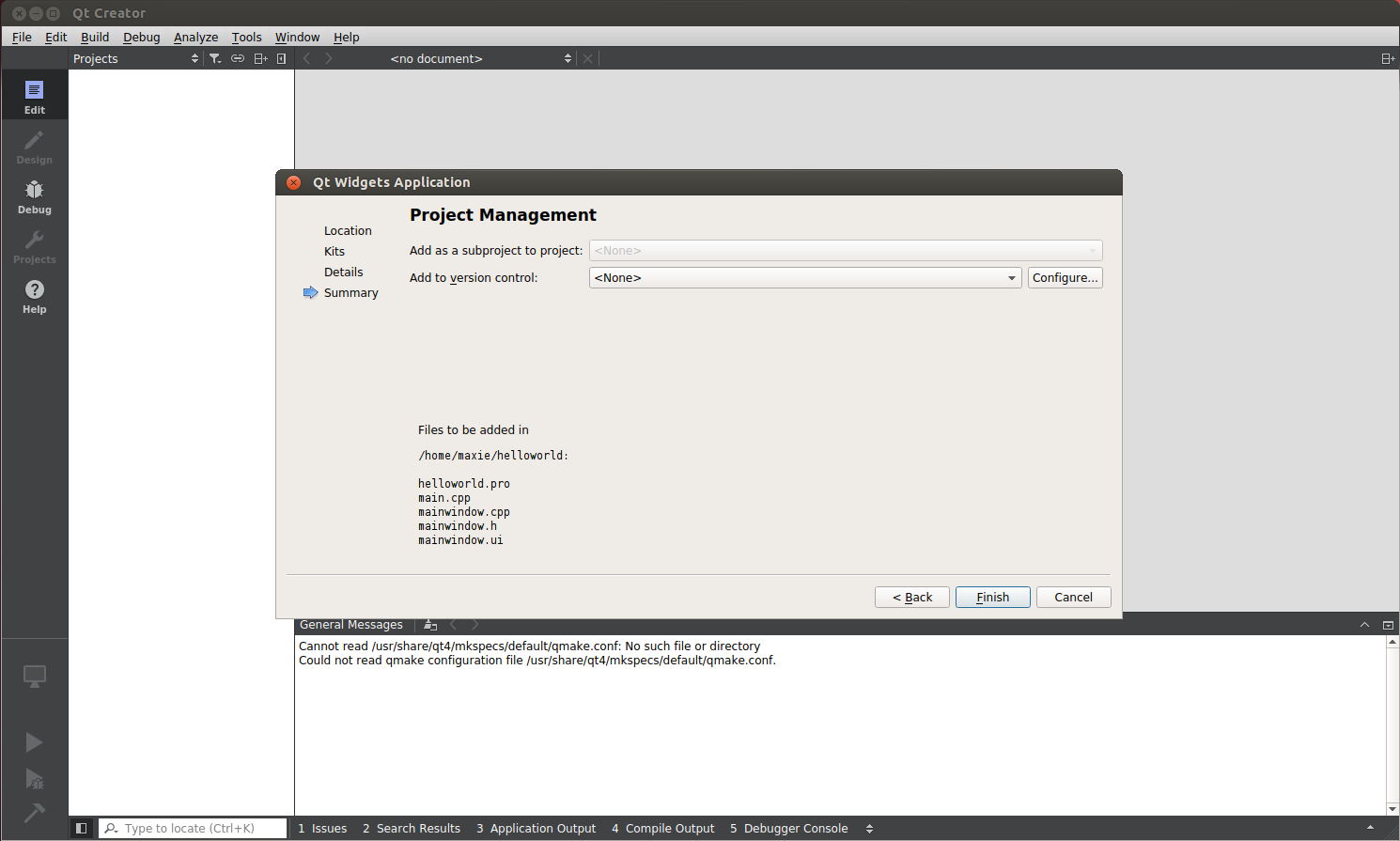
Figure 5-2-9 Finish Creating a New Project